Summary Statistics & Frequency Tables
In this lesson, you will learn a few important functions to derive summary statistics and frequency tables, two very important first steps in any analysis.
In this lesson, however, we will use the Titanic dataset, which is already built into the Seaborn library.
head/tail/sample functions
Looking at the first few records, the last few records, or randomly checking a few records is something any data analyst would do at some point while analyzing data. Here are the functions to do exactly that.
titanic_df.head(3)
The head() method on a DataFrame takes an optional integer parameter and returns that number of top rows from the table. If no argument is given, it returns the top 5 rows.
Note: You can also enclose titanic.head(3) within a print() statement. In a Jupyter notebook, print() is optional for the last statement in a code cell. Otherwise, print() is required to see the output.
tail()is similar, except this command returns the last 5 rows of the table by default.sample()is also similar, except this command randomly picks rows from the table.
info
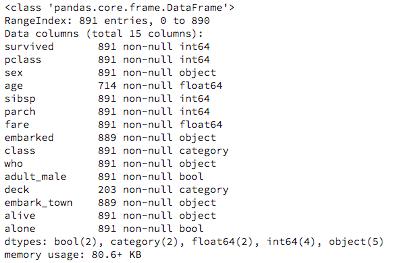
The next important function on any table is to get a cursory glance at the table data and get an idea of the number and names of columns, column data types, the number of null values in the data, etc. For this, we use the info() method on the DataFrame.
import pandas as pd

titanic_df = pd.read_csv("datasets/titanic.csv")
titanic_df.info()
Output:
describe
One of the simplest exploratory analysis artifacts is the summary statistics of your data. A DataFrame has a simple, easy function, describe(), to produce some of the most important summary statistic values like mean, median, minimum, count, etc. This saves you from writing tens of lines of code in Python or NumPy to calculate the same set of values!
When you invoke the describe() function on a DataFrame, it generates summary values across all numerical columns, displaying the column-wise central tendencies, dispersion, etc. Non-numerical columns are ignored when you apply describe() at the DataFrame level.
titanic_df.describe()Output:
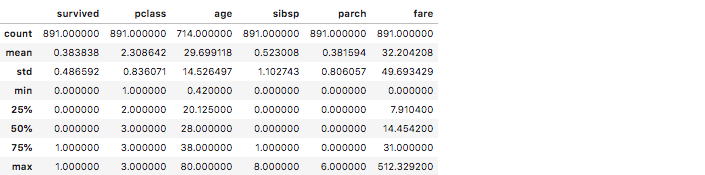
In the Titanic data, you can note from the age column that the mean age of the passengers is 29.69, the median (50%) age is 28, the standard deviation (std) is 14.52, the oldest traveler was 80 years old, and the youngest was 0.42 years old.
Imagine the number of lines of code you would have had to write in Python to calculate all these values! Although the calculations are shown for all the numerical columns, the age, fare, survived, and pclass columns are probably the most interesting.
If you are wondering about the type of data in these columns, here is a rundown:
| Column | Meaning | Categorical/Continuous | Notes |
|---|---|---|---|
| survived | Survived the tragedy | Categorical | 0 = No, 1 = Yes |
| pclass | Ticket class | Categorical | 1 = 1st, 2 = 2nd, 3 = 3rd |
| sibsp | # of siblings / spouses aboard the Titanic | continuous | |
| parch | # of parents / children aboard the Titanic | continuous | |
| embarked | Port of Embarkation | Categorical | C = Cherbourg, Q = Queenstown, S = Southampton |
Although applying describe() on a DataFrame does not yield results for a non-numerical column, you can, however, apply describe() to an individual non-numerical column. Here is an example:
titanic_df.embarked.describe()Output:

Applying the describe() function directly to a column will not show summaries like mean, std, etc.; however, you will get results that are relevant to that categorical value.
nlargest/nsmallest
To get the top 'n' sorted rows based on a column, you would use the nlargest() function, providing the column name to sort on. To get the top 4 entries of the oldest passengers in the Titanic data, you would write the code below:
titanic_df.nlargest(4, "age")
The complement to that is nsmallest(). To get the 4 youngest passengers on the Titanic, you would write:
titanic_df.nsmallest(4, "age")corr
To find correlations between numerical column values in a DataFrame, you can use the corr() function on the DataFrame. Here is an example:
titanic_df.corr()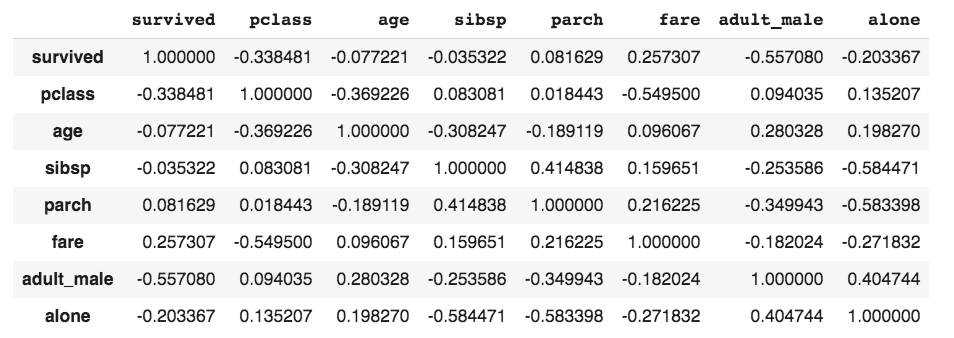
corrWith function
To find the correlation between one column and the rest of the columns, you would use the corrwith() function. Suppose you only want to find the correlation between the fare column and the rest of the columns in the Titanic dataset. In that case, you would write the code below:
titanic_df.corrwith(titanic["fare"]).nlargest(10)Output:
fare          1.000000
survived      0.257307
parch         0.216225
sibsp         0.159651
age           0.096067
adult_male   -0.182024
alone        -0.271832
pclass       -0.549500
dtype: float64
By using nlargest(), we are only getting the 10 highest correlations, in which the fare column should be ignored, as there is no meaning in saying 'fare' is highly correlated to 'fare'! Among the ones that make sense, we see a slight positive correlation between fare and survived and a negative correlation between fare and pclass.
This means people who paid a higher fare had a better chance of survival. Since pclass 1 was the costliest, there is a negative correlation between the pclass value and the fare.
Note: Only numerical columns should be selected in the DataFrame before corrwith() is used.
value_counts
To create a frequency table of any column's values, you can use the value_counts() function.
Here is an example of getting the frequency table for the embark_town column of the Titanic dataset:
df.embark_town.value_counts()Southampton 644 Cherbourg 168 Queenstown 77
To get the relative frequency table of the same column, you can add the keyword argument normalize=True. Here is the example:
df.embark_town.value_counts(normalize=True)Southampton 0.724409 Cherbourg 0.188976 Queenstown 0.086614
You can multiply the expression by 100 to get percentages:
df.embark_town.value_counts(normalize=True) * 100
Set Options
When you print a DataFrame that has too many columns and rows, you will see ellipses in place of the column names and rows.
chicago_schools = pd.read_csv("https://data.cityofchicago.org/resource/5tiy-yfrg.csv")
chicago_schools
Run the example above, and you will see ellipses in the middle of the column and row listings.

This is because the default display options for max_rows and max_columns are 60 and 20, respectively. To find the default option values, you would run the statements below:
print(pd.get_option("max_rows"))
print(pd.get_option("max_columns"))
In case you want to see all the columns and/or rows, you can change the default display setting by resetting the options, as shown below. There are two ways of setting this value, and both ways are shown below, using one method for each setting:
pd.set_option("display.max_columns", None)
pd.options.display.max_rows = NoneDefault settings are there for a reason: performance! For large datasets, you run the risk of slow page loads and/or a complete crash of the page as your system runs out of memory to show the markup of all columns and rows.
Instead of setting it to None, you could use any other number as well. Typically, setting the rows to 10 is popular.